Paint U and V Cloth properties separately

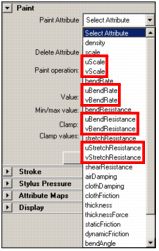
We have added new Cloth paint attributes to the Paint Cloth Properties Tool. With these new paint attributes, you can now paint the U and V values separately for Cloth Bend Resistance, Bend Rate, Stretch Resistance, and Scale.

This gives you better control over your painted Cloth properties in a single direction. For example, you can now easily create a fabric that is stretchier in one direction than another.

Weight Cloth property maps

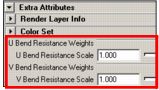
Now when you paint Cloth properties, each Cloth property map you create is automatically given the new Scale attribute. You can use the Scale attribute to adjust or animate the weights of your property maps, or turn your maps on (1) or off (0).

The Scale attribute is located in the Extra Attributes section of the clothShape node.

Improved Cloth constraint stiffness and damping painting

The Paint Cloth Properties Tool now paints values that are mapped to a wider range of effects. The 0 and 1 Values for the constraintStiffness and constraintDamping Cloth paint properties are now mapped to much lower and higher Stiffness and Damping attribute values. 1 now paints a hard constraint, 0 paints a soft constraint, and values between 0 and 1 paint varying degrees of constraint softness.

This allows you to paint a wider range of constraint Stiffness and Damping values to create smoother transitions from painted soft to hard Mesh or Transform constraints. For example, with this new value range, you can now use a Mesh constrained object as a target for simulated cloth and still produce smooth transition goal weights.

Stiffen Cloth seams

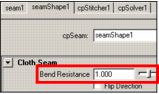
You can now stiffen a seam to prevent unwanted bending at the seam with the new Bend Resistance attribute. This allows you to compensate for the tendency of seams to bend more than the rest of the cloth, due to the straight line of vertices and lack of resistance along the seams.

The Bend Resistance attribute is located in the Cloth Seam section of the seamShape node.

Field constraint recoil and Recoil Priority

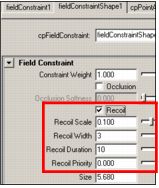
  • You can now dampen the influence of Cloth field constraints on constrained cloth vertices with the new Recoil properties on the FieldConstraintShape node. These properties allow you to control how your field constraints affect their cloth’s subtle motions. Previously, you could only set recoil properties for cloth collisions. See Recoil.
  • Recoil is now based on priority. With the new Recoil Priority attribute, you can now set the priority for your cloth collision and field constraint recoil. This attribute lets you set the order in which your collision and field constraint recoil properties take effect. By default, collision recoil takes priority over field constraint recoil. See Recoil Priority.

Recoil Priority is located on the FieldConstraintShape and cpSolver nodes.

Improved control over Cloth collision objects

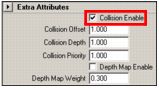
You can now turn on and off the collisions for Cloth collision object shapes with the new Collision Enable attribute.

The Collision Enable attribute is located in the Extra Attributes section of your collision object Shape nodes.

Improved Cloth constraint creation

You can now mesh or transform constrain your cloth to non-collision objects.

Auto Save cloth caches periodically

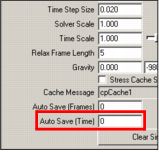
With the new Auto Save (Time) attribute, you can now specify a time interval (in seconds) at which your cloth is automatically saved to a temporary cache during its cloth simulation. For example, if you set Auto Save (Time) to 300, your cloth would be saved to a temporary cache every 5 minutes during its simulation.

This allows you to save your cloth simulation periodically so that you can avoid situations (such as a system crash) where your entire simulation is lost.

The Auto Save (Time) attribute is located in the Solver Attributes section of the cpSolver node.


Auto Save cloth caches save as temporary files

Cloth caches that are automatically created as a result of the Auto Save (Time) or Auto Save (Frames) cache solver settings are now saved as temporary files.

Sub-frame Cloth expression evaluation

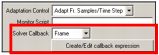
You can now evaluate your cloth expressions after each sub-frame of your cloth’s simulation with the new Solver Callback attribute and Create/Edit Callback Expression button. For example, you can now smooth your cloth’s vertices after each sub-frame of your cloth’s simulation to achieve a smoother result than just smoothing your cloth after each frame.

The Solver Callback attribute and Create/Edit Callback Expression button are located in the Solver Attributes section of the cpSolver node.

Other Cloth improvements