


Installing Mudbox on Mac
OS X
To install Mudbox for Mac OS X
The installer window appears. You can cancel the installation at any time by closing the installer window.
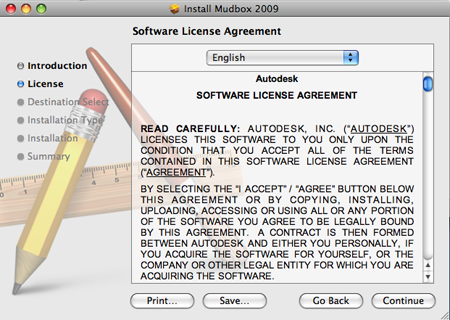
The Autodesk Software License Agreement appears. You can print or save this license agreement for future reference. This agreement requires your acceptance for the Mudbox software installation to continue. If you do not agree to the terms and conditions of the agreement, the installation process does not continue.
The Select a Destination window appears. Select the volume you want to install Mudbox.
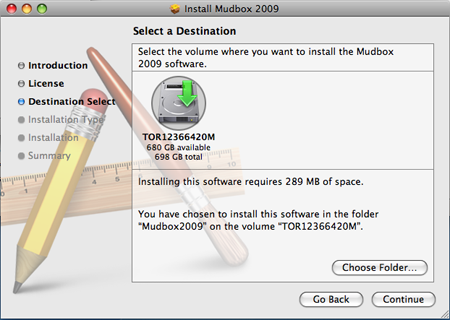
By default, Mudbox is installed into the /Applications/Autodesk/Mudbox2009 folder of this volume. You can specify another folder by clicking Choose Folder.
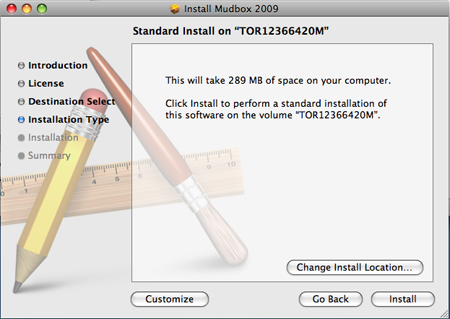
Click Continue. The Standard Install screen appears.
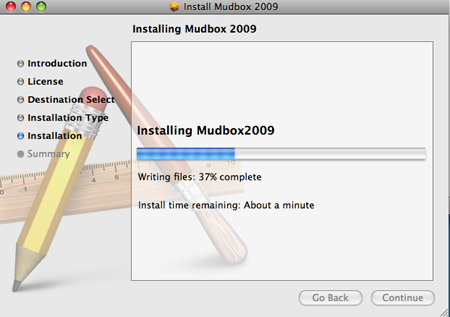
Mudbox is installed on your computer. The progress of the installation is indicated by a progress bar at the bottom of the installer window.
The Installation Completed Successfully screen appears to indicate that Mudbox was installed.
If you’re setting up a license server, see Network license configuration and Client Setup for details on how to set up both a license server and clients.
When the installer finishes, it displays a message indicating that the software install is complete.